Open files in VS Code and Cursor / 3D and imaging
Annotate a screenshot in VS Code
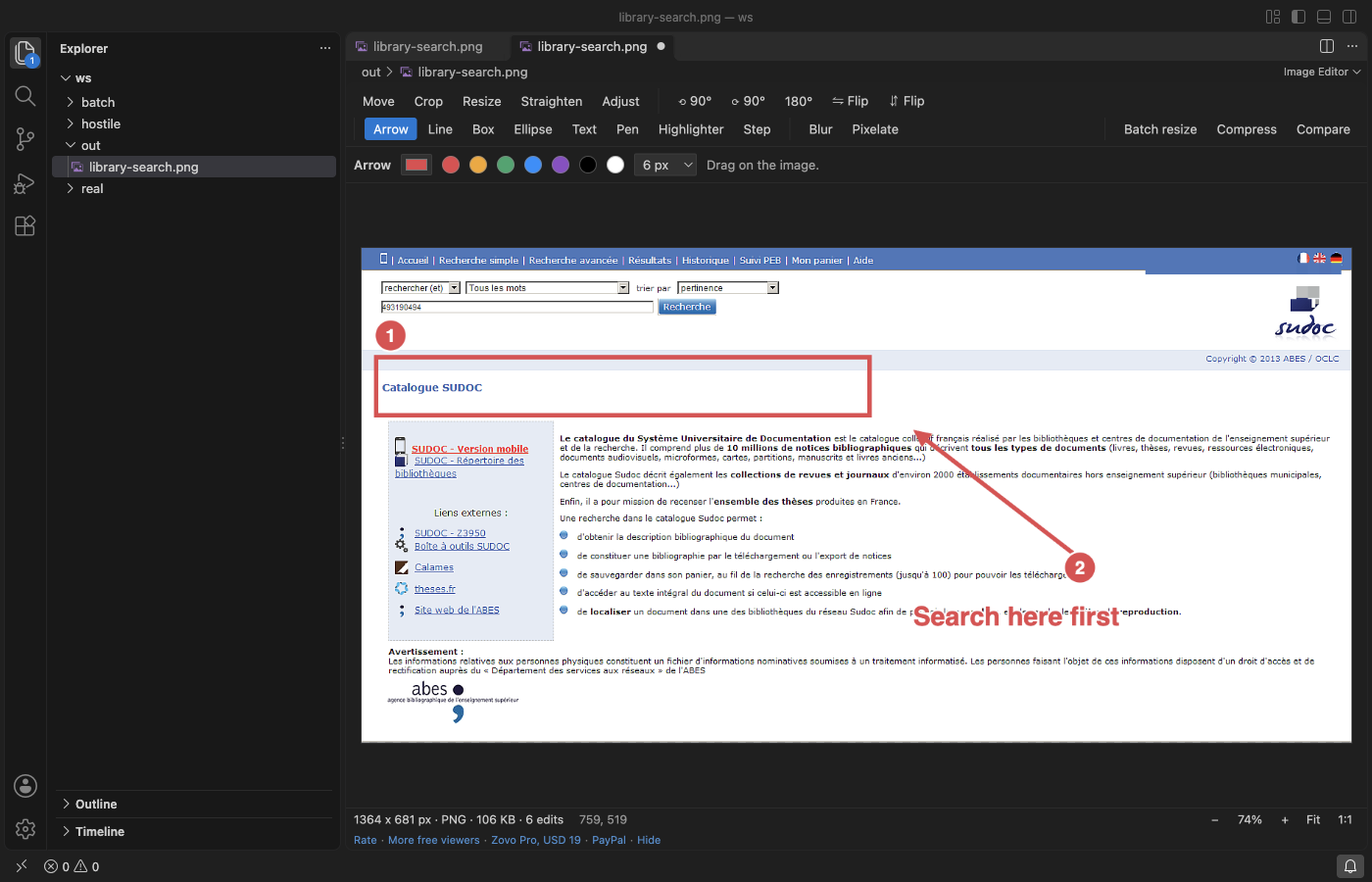
VS Code's own image preview only shows a picture. The free Image Editor adds an Edit Image button to that preview, with arrows, lines, boxes, ellipses, text, a pen, a highlighter and numbered step badges, plus Blur and Pixelate for emails, passwords and faces. Saving replaces the hidden pixels in the file, so they cannot be recovered. All editing is free. Zovo Pro (USD 19 once) adds a compare of two screenshots with a pixel diff, a batch resize of a folder and a compress to a target size, with 3 free tries each.
Free, MIT license. Extension ID zovo.zovo-image-editor, version 0.1.1. Needs VS Code 1.90.0 or newer.
Steps in VS Code
- Install Image Editor from the Marketplace, or press Ctrl+P (Cmd+P on macOS) and run
ext install zovo.zovo-image-editor. - Click the
.png,.jpg,.webp,.gifor.bmpfile. It opens in VS Code's own preview first. Click Edit Image at the top right, or right-click the file in the Explorer and pick Edit Image. - To start from a screenshot you just took, run "Image Editor: Paste an image from the clipboard as a new file", or press Ctrl+V (Cmd+V on macOS) in the editor.
- Pick Arrow (A), Line (L), Box (R), Ellipse (E), Text (T), Pen (P), Highlighter (H) or Step (N), choose a colour and a width, and drag on the image. For Text and Step, click where it goes. Shift keeps lines at 45 degree steps and boxes square, and step badges count up 1, 2, 3 by themselves.
- Pick Blur (B) or Pixelate (X), choose a strength, and drag a box over what must not be seen.
- Use Crop with a free or fixed ratio, then press Ctrl+S (Cmd+S) to save in the same format. "Image Editor: Save a copy as PNG, JPEG, WebP or BMP" writes a new file instead. Undo, Redo and Revert work as in any VS Code editor.
Where Zovo Pro saves time
Crop, resize, rotate, flip, straighten, every annotation tool, blur and pixelate, brightness, contrast and saturation, paste from the clipboard, Save and Save As are free. You need no account, nothing goes over the network, and no message about Pro shows when you open an image.
When a screenshot shows a UI change, Compare two images puts the old and the new screenshot side by side with a slider, an onion skin or a pixel diff. The diff counts the changed pixels, draws boxes around the changed areas and saves the diff as a PNG for the pull request. The other two Pro tools resize and convert every image in a folder and compress images to a file size you type, such as 200 KB.
With Compare two images (Zovo Pro)
- Run "Image Editor: Compare two images (Pro)" from the Command Palette, click Compare in the editor toolbar, or right-click an image in the Explorer.
- Pick the second image. Switch between Slider, Onion skin and Difference, and move the Threshold to ignore small changes.
- Click Save diff PNG. A try counts only when the comparison shows, and Escape or Cancel never uses one.
Compare two images works 3 times on your computer before it asks for a license, and a try counts only when you get a result. Opening a file shows no popup and no countdown.
Zovo Pro costs USD 19 once. It is not a subscription, and it turns on the Pro tools in every Zovo extension, not only Image Editor. After a card payment (Stripe) your license key shows on the next page. In VS Code, run "Zovo Pro: Enter Zovo Pro license key" from the Command Palette and paste it. The key is checked on your computer, with no network call. With GitHub Sponsors, pick the "$19 one time" tier, then run "Zovo Pro: I already paid: unlock with GitHub Sponsors" and sign in with the same GitHub account. With PayPal, send USD 19 with "Zovo Pro" in the note and the key comes by email within a day.
A team of 5: USD 59 once, by card or by PayPal. Every rule and every Pro tool is on the Zovo Pro page.
Steps in Cursor, Windsurf or VSCodium
- Open the Extensions view with Ctrl+Shift+X (Cmd+Shift+X on macOS).
- Search for
zovo.zovo-image-editorand click Install. Cursor, Windsurf and VSCodium install from Open VSX, where it is published aszovo/zovo-image-editor. - If your editor has no gallery, download the .vsix from the Open VSX page and run "Extensions: Install from VSIX...".
- Then use it the same way as in VS Code.
What Image Editor handles
- PNG, JPEG, WebP, GIF (first frame) and BMP files.
- Arrows, lines, boxes, ellipses, text, pen, highlighter and numbered steps in any colour.
- Blur and pixelate that replace the pixels when you save.
- Phone photos, turned the right way up from their EXIF orientation.
What it does not do
- TIFF, HEIC, AVIF and SVG files do not open in this editor.
- A GIF opens at its first frame and is saved as a PNG next to it.
- Save writes pixels only. EXIF data such as the camera or GPS location is not copied.
- Images up to 100 megapixels and 32,767 pixels a side open. The editor has no layers.
Other options
- Flameshot. A free, open source screenshot tool with arrows, boxes, numbers and blur, for Windows, macOS and Linux.
- The markup tool of your system. Preview on macOS and Snipping Tool on Windows add arrows and shapes for free, outside VS Code.
- GIMP. A free image editor with layers, for work that needs more than markup.
Install counts and Open VSX status were checked on 12 November 2026. Descriptions in quotes are the extensions' own.
Questions
Can someone undo the blur in the saved file?
No. Saving replaces those pixels in the file. Keep a copy if you need the original.
Does the original preview change?
No. Images still open in VS Code's own preview. The editor opens only when you click Edit Image or pick it with Open With.
Is it free?
Yes. All editing and saving is free. Only Compare two images, Batch resize and convert a folder and Compress to a target size are Pro, with 3 free tries each.
Does it work in Cursor or Windsurf?
Yes. Cursor, Windsurf and VSCodium install extensions from Open VSX. Search for the extension in their Extensions view and install it there.
More about Image Editor
Read the Image Editor page for every feature and setting, or the source code on GitHub.
Related guides
- Batch resize a folder of images in VS Code
- View STL files in VS Code
- Open DICOM and NIfTI files in VS Code
- Calculate the volume of an STL file
Zovo Pro and support
Zovo Pro: USD 19 once, every Zovo viewer. It turns on the Pro tools in this extension and in the other Zovo extensions you use. The free features stay free.
After a card payment your license key shows on the next page. Paste it with the command "Zovo Pro: Enter a key".
You can also support the work with no Pro:
Need your format supported?
Open a format request with a sample file, and I reply there whether it can be done. For USD 299 once, through this GitHub Sponsors tier, I add your file format or a missing feature to this extension, with tests, within 7 days.