Open files in VS Code and Cursor / Code and APIs
Browse Azurite from a Dev Container or Codespace
Azure Storage & Blob Explorer runs inside the VS Code extension host in plain JavaScript, with no desktop Storage Explorer, no AzCopy and no native module, so it works in a Dev Container, a Codespace, Remote SSH and WSL. Azurite in the same container is one click away on 127.0.0.1, and an Azurite service in Docker Compose connects by its service name. Browsing, upload, download, queues and tables are free. Zovo Pro (USD 19 once) adds folder sync with a dry run and a usage and cost report, with 3 free tries each.
Free, MIT license. Extension ID zovo.zovo-azure-storage-explorer, version 0.1.3. Needs VS Code 1.90.0 or newer.
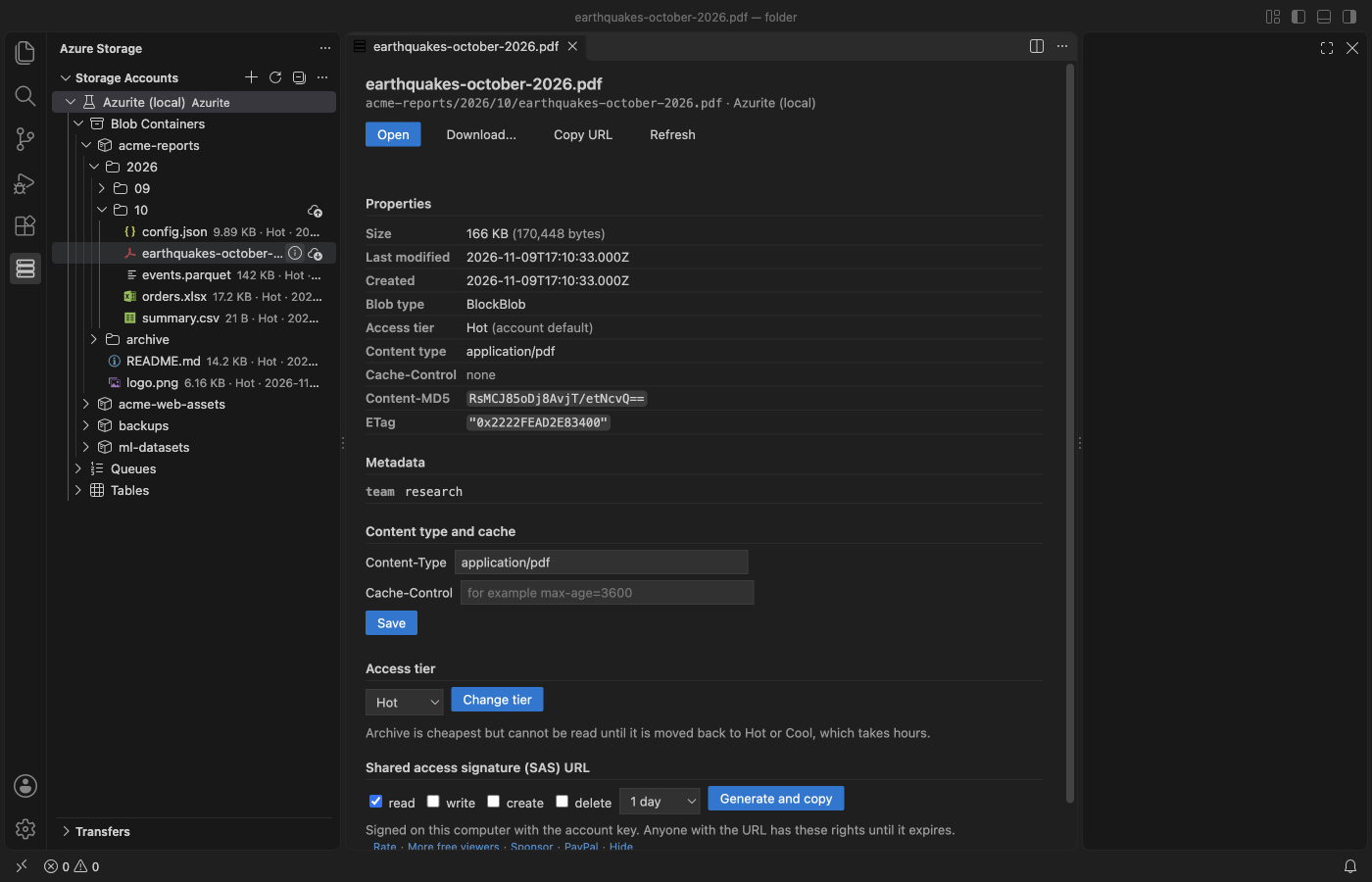
Steps in VS Code
- Install Azure Storage & Blob Explorer from the Marketplace, or press Ctrl+P (Cmd+P on macOS) and run
ext install zovo.zovo-azure-storage-explorer. - Start Azurite where your code runs. In a Dev Container or Codespace terminal, "Azure Storage: Start Azurite in a Terminal" starts it with npx for you. In Docker Compose, run the
mcr.microsoft.com/azure-storage/azuriteimage as its own service with--disableProductStyleUrl. - Open the Azure Storage view in the Activity Bar. For Azurite in the same container or Codespace, run "Connect to Azurite (Local Emulator)". It connects to 127.0.0.1 on ports 10000, 10001 and 10002 with the Azurite account.
- For Azurite in another container, click Add Connection, pick "Azurite on another host" and type the service name, such as
azurite, or its IP address. - Expand Blob Containers, Queues or Tables. Text and JSON blobs open in an editor tab, and Save writes them back. Upload Files..., Upload Folder... and Download... are in the right-click menu.
- If Azurite listens on other ports, click Add Connection and paste a connection string with the Azurite account, key and your own
BlobEndpoint,QueueEndpointandTableEndpoint.
Where Zovo Pro saves time
Connecting, browsing, opening and editing blobs, upload, download, the transfer queue, SAS URLs, properties, access tiers, rename, delete, queues and tables are free, with no limits. Azurite needs no Azure sign-in, and there is no telemetry.
When you fill Azurite with test files, or keep a local folder in step with a container, Sync Folder with Dry Run compares the folder with the container or a folder in it. It lists what is new, changed or missing, then copies only the differences. Mirror mode also deletes extras, after you confirm the list. The other Pro tool is the Usage and Cost Report, with size, blob count and an estimated monthly cost per folder and access tier, plus the 10 largest blobs.
With Sync Folder with Dry Run (Zovo Pro)
- Right-click a container or folder in the Storage Accounts view, or run "Azure Storage: Sync Folder with Dry Run... (Pro)" from the Command Palette.
- Pick the local folder. The dry run lists what is new, changed or missing before anything is copied.
- Confirm to copy only the differences. Folders such as
.gitandnode_modulesare skipped (settingazureStorage.syncExcludes).
Sync Folder with Dry Run works 3 times on your computer before it asks for a license, and a try counts only when you get a result. Opening a file shows no popup and no countdown.
Zovo Pro costs USD 19 once. It is not a subscription, and it turns on the Pro tools in every Zovo extension, not only Azure Storage & Blob Explorer. After a card payment (Stripe) your license key shows on the next page. In VS Code, run "Zovo Pro: Enter Zovo Pro license key" from the Command Palette and paste it. The key is checked on your computer, with no network call. With GitHub Sponsors, pick the "$19 one time" tier, then run "Zovo Pro: I already paid: unlock with GitHub Sponsors" and sign in with the same GitHub account. With PayPal, send USD 19 with "Zovo Pro" in the note and the key comes by email within a day.
A team of 5: USD 59 once, by card or by PayPal. Every rule and every Pro tool is on the Zovo Pro page.
Steps in Cursor, Windsurf or VSCodium
- Open the Extensions view with Ctrl+Shift+X (Cmd+Shift+X on macOS).
- Search for
zovo.zovo-azure-storage-explorerand click Install. Cursor, Windsurf and VSCodium install from Open VSX, where it is published aszovo/zovo-azure-storage-explorer. - If your editor has no gallery, download the .vsix from the Open VSX page and run "Extensions: Install from VSIX...".
- Then use it the same way as in VS Code.
What Azure Storage & Blob Explorer handles
- Azurite on 127.0.0.1 in the same container or Codespace, in one click.
- Azurite on another host, such as a Docker Compose service named
azurite. - Blob containers with folders, queues (peek, send, dequeue, clear) and tables (OData query, edit in a grid).
- Real Azure accounts with a connection string, an account key, a SAS URL or Microsoft Entra ID.
What it does not do
- "Azurite on another host" uses ports 10000 to 10002. For other ports, paste a connection string with your own endpoints.
- Azurite reached by a host name such as
azuriteanswers 400 unless it runs with--disableProductStyleUrl. Connecting by IP address works too. - "Start Azurite in a Terminal" uses npx, so the container needs Node.js and npm.
- Text blobs over 10 MB ask first and can show only the first 1 MB (setting
azureStorage.maxTextPreviewMB).
Other options
- Microsoft Azure Storage Explorer. The free desktop app from Microsoft. It runs on your computer, so it reaches Azurite in a container only through a forwarded port.
- Azure Storage extension by Microsoft. Microsoft's own VS Code extension. Marketplace reviews and GitHub issues report problems with it in Codespaces.
- Azure CLI. Free.
az storagecommands take an Azurite connection string. Good for scripts, with no tree view.
Install counts and Open VSX status were checked on 12 November 2026. Descriptions in quotes are the extensions' own.
Questions
Why does 127.0.0.1 not reach my Azurite container?
The extension runs where your workspace runs. In a Dev Container that is the container, so 127.0.0.1 is the container itself. If Azurite is a separate Compose service, use "Azurite on another host" with its service name.
Do I need an Azure account?
No. Azurite needs no sign-in. For real accounts, a connection string, an account key or a SAS URL also works without an Azure sign-in.
Is this Microsoft's extension?
No. It is an independent extension by Zovo, not made by or affiliated with Microsoft.
Does it work in Cursor or Windsurf?
Yes. Cursor, Windsurf and VSCodium install extensions from Open VSX. Search for the extension in their Extensions view and install it there.
More about Azure Storage & Blob Explorer
Read the Azure Storage & Blob Explorer page for every feature and setting, or the source code on GitHub.
Related guides
- Open a SARIF file in VS Code
- Preview a Swagger or OpenAPI file in VS Code
- Preview an HTML file with its CSS and images in VS Code
- Test a regex in VS Code
Zovo Pro and support
Zovo Pro: USD 19 once, every Zovo viewer. It turns on the Pro tools in this extension and in the other Zovo extensions you use. The free features stay free.
After a card payment your license key shows on the next page. Paste it with the command "Zovo Pro: Enter a key".
You can also support the work with no Pro:
Need your format supported?
Open a format request with a sample file, and I reply there whether it can be done. For USD 299 once, through this GitHub Sponsors tier, I add your file format or a missing feature to this extension, with tests, within 7 days.