Open files in VS Code and Cursor / Binary, network and hardware
See the sections and imports of an ELF, EXE or DLL file in VS Code
ELF Viewer & PE Viewer opens Linux ELF, Windows PE and Apple Mach-O files in VS Code and VSCodium. Click a .so, .exe, .dll or .dylib file and you get tabs for the headers, sections, segments, imports, exports and symbols, plus a hex view. Every view is free and read-only, and you need no readelf, objdump or dumpbin. Zovo Pro (USD 19 once) adds a search of a whole folder of binaries, a compare of two builds and export as JSON or a C header, with 3 free tries each.
Free, MIT license. Extension ID zovo.zovo-elf-pe-viewer, version 0.1.3. Needs VS Code 1.90.0 or newer.
This guide is also in Deutsch, Español, 日本語.
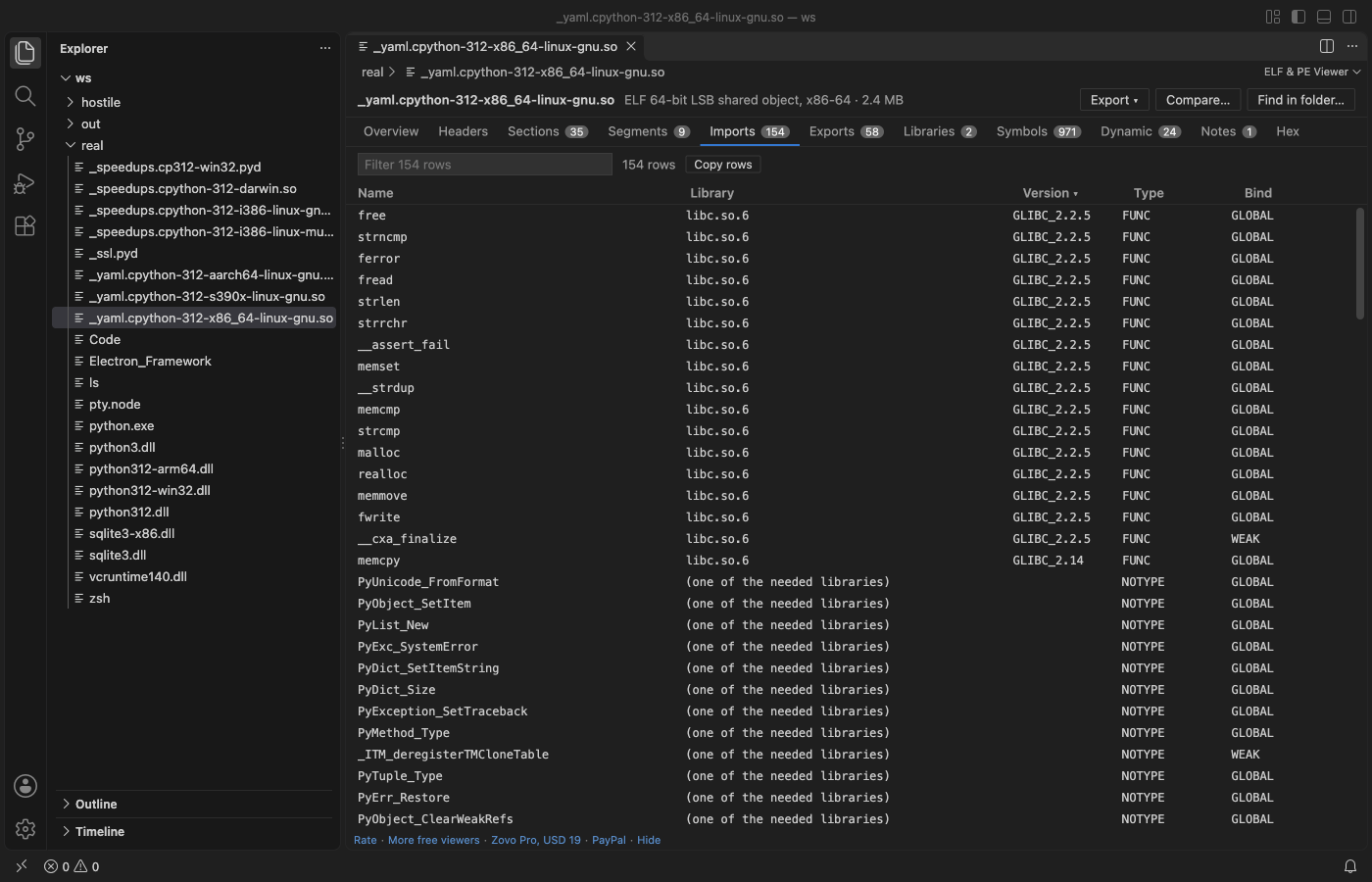
Steps in VS Code
- Install ELF Viewer & PE Viewer from the Marketplace, or press Ctrl+P (Cmd+P on macOS) and run
ext install zovo.zovo-elf-pe-viewer. - Click a
.exe,.dll,.sys,.so,.dylib,.elfor.kofile in the Explorer. It opens in the viewer. For a.oobject file or a Linux or macOS executable with no extension, right-click it and pick Open in ELF & PE Viewer. - The Overview tab comes first. It shows the architecture, file type, entry point, linked libraries, security flags such as ASLR and DEP, the build ID and the PDB path.
- Open the Sections or Imports tab. ELF imports show the library and the symbol version of each function. PE files also get data directories, delay-load imports and resources, and Mach-O files get load commands.
- Type in the filter box above a table to narrow the rows, and click a column header to sort. Copy rows puts the rows you see on the clipboard as tab-separated text.
- Click the
byteslink of a section or segment to see its bytes marked in the Hex tab. In the Headers tab, Show every header field with its offset opens the field tree.
Where Zovo Pro saves time
Every view of a file is free, with no limit and no sign-in. That covers the overview, all tables, filter, sort and copy, the hex view and the field tree. The file is read in a separate worker thread with a time and memory limit. The extension never writes to the binary and makes no network calls.
To learn which binaries in a build folder import a function or link a library, this tool reads every ELF, PE and Mach-O file in the folder and lists each match with its file. Plain text matches any part of a name, and a /regex/ works too. The other two Pro tools compare two builds (header fields, sections, libraries, imports and exports that changed) and export the structure as JSON or as a C header.
With Find a symbol or import in a folder (Zovo Pro)
- Open a binary and click Find in folder… at the top, or run "ELF & PE Viewer: Find a symbol or import in a folder (Pro)" from the Command Palette.
- Type a name such as
CreateFileWorSSL_read, or a regex such as/^_?pthread_/. It searches the workspace folder, or asks you for a folder. - From the viewer, the matches open in a Find tab with a Copy button. Escape, or a search with no match, uses no free try.
Find a symbol or import in a folder works 3 times on your computer before it asks for a license, and a try counts only when you get a result. Opening a file shows no popup and no countdown.
Zovo Pro costs USD 19 once. It is not a subscription, and it turns on the Pro tools in every Zovo extension, not only ELF Viewer & PE Viewer. After a card payment (Stripe) your license key shows on the next page. In VS Code, run "Zovo Pro: Enter Zovo Pro license key" from the Command Palette and paste it. The key is checked on your computer, with no network call. With GitHub Sponsors, pick the "$19 one time" tier, then run "Zovo Pro: I already paid: unlock with GitHub Sponsors" and sign in with the same GitHub account. With PayPal, send USD 19 with "Zovo Pro" in the note and the key comes by email within a day.
A team of 5: USD 59 once, by card or by PayPal. Every rule and every Pro tool is on the Zovo Pro page.
Steps in Cursor, Windsurf or VSCodium
- Open the Extensions view with Ctrl+Shift+X (Cmd+Shift+X on macOS).
- Search for
zovo.zovo-elf-pe-viewerand click Install. Cursor, Windsurf and VSCodium install from Open VSX, where it is published aszovo/zovo-elf-pe-viewer. - If your editor has no gallery, download the .vsix from the Open VSX page and run "Extensions: Install from VSIX...".
- Then use it the same way as in VS Code.
What ELF Viewer & PE Viewer handles
- ELF files in 32 and 64-bit, little and big endian, such as
.so,.o,.ko,.elf,.axfand Linux executables. - PE32 and PE32+ files such as
.exe,.dll,.sys,.efiand.pyd, with imports by name and ordinal, exports with forwarders and the .NET runtime header. - Mach-O in 32 and 64-bit, and universal binaries. Pick the architecture, such as arm64 or x86_64, at the top.
- Tables with up to 100,000 rows that still scroll and filter fast.
What it does not do
- It is read-only and has no disassembly.
- Static libraries (
.a), Java class files, WebAssembly and DEX files are not read. - Tables stop at 100,000 rows each, and reading stops after 10 seconds. The viewer says so when it happens.
- Files on remote or virtual file systems are read up to 256 MB. Find in folder searches local folders only.
Other options
- readelf and objdump. Free command-line tools from GNU binutils that print ELF headers, sections and symbols, and disassemble code.
- dumpbin. Comes with Visual Studio on Windows. dumpbin /imports and /exports list the imports and exports of a PE file.
- otool and nm. Command-line tools on macOS. otool -L lists the libraries a Mach-O file links.
Install counts and Open VSX status were checked on 12 November 2026. Descriptions in quotes are the extensions' own.
Questions
Do I need readelf, objdump or dumpbin?
No. The extension reads ELF, PE and Mach-O files itself, with no other program installed.
Can it change the binary?
No. It only reads the file and never writes to it. The Pro export saves a new JSON or header file where you pick.
Is it free?
Yes. Every view of a file is free, with no sign-in. Find in a folder, compare and export are Zovo Pro tools with 3 free tries each, and a try counts only when the tool gives a result.
Does it work in Cursor or Windsurf?
Yes. Cursor, Windsurf and VSCodium install extensions from Open VSX. Search for the extension in their Extensions view and install it there.
More about ELF Viewer & PE Viewer
Read the ELF Viewer & PE Viewer page for every feature and setting, or the source code on GitHub.
Related guides
- ELF Viewer & PE Viewer on the VS Code Marketplace (also on Open VSX). Shows headers, sections and imports of ELF, PE and Mach-O files.
- Use a hex editor in VS Code
- Open a binary file in VS Code
- Open a PCAP file in VS Code
- View VCD waveforms in VS Code
Zovo Pro and support
Zovo Pro: USD 19 once, every Zovo viewer. It turns on the Pro tools in this extension and in the other Zovo extensions you use. The free features stay free.
After a card payment your license key shows on the next page. Paste it with the command "Zovo Pro: Enter a key".
You can also support the work with no Pro:
Need your format supported?
Open a format request with a sample file, and I reply there whether it can be done. For USD 299 once, through this GitHub Sponsors tier, I add your file format or a missing feature to this extension, with tests, within 7 days.