Open files in VS Code and Cursor / Binary, network and hardware
See what an Intel HEX or S19 file puts in memory
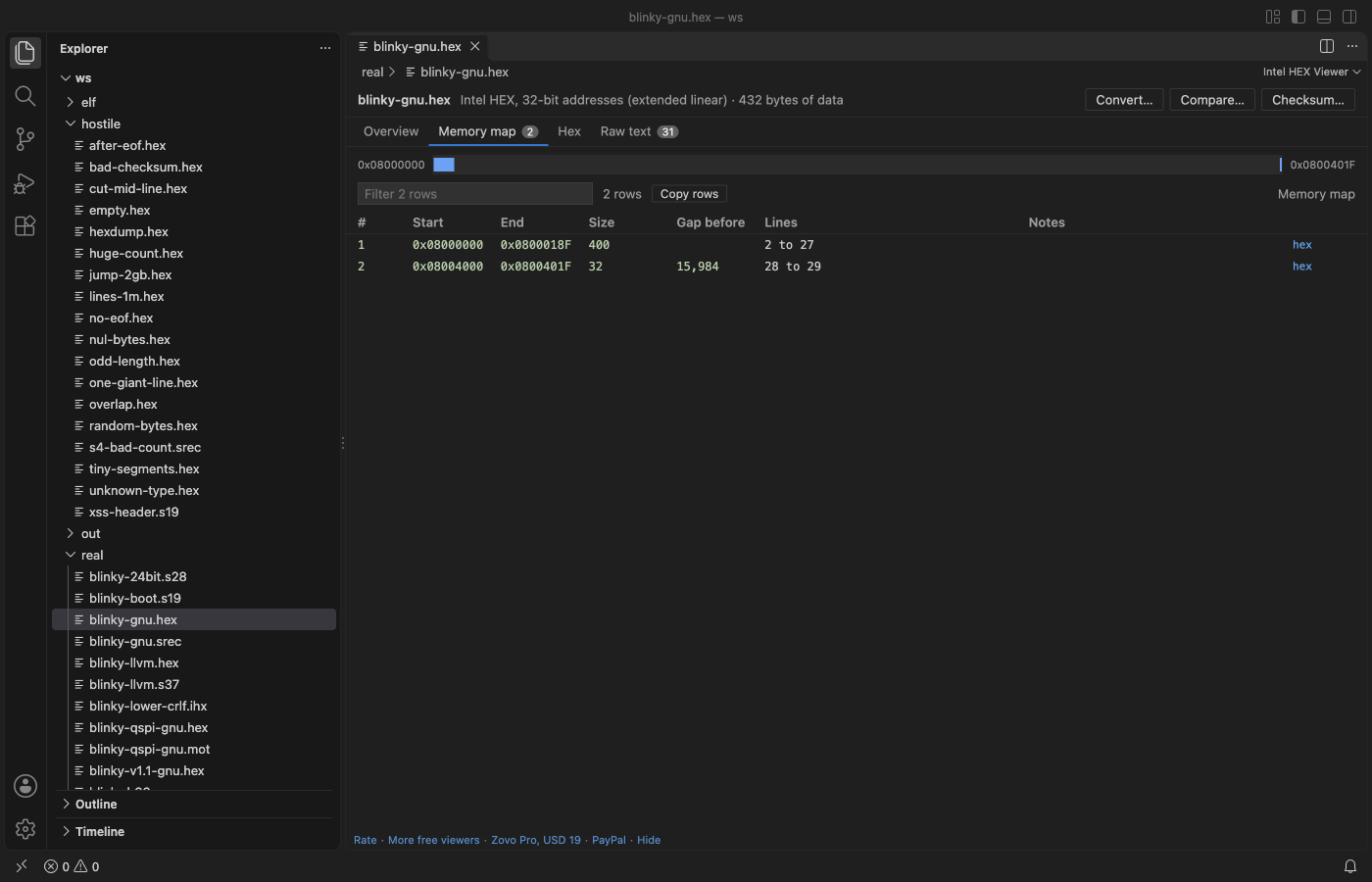
Intel HEX Viewer shows what a .hex, .s19 or .srec image puts in memory. The Memory map tab lists each block with its first and last address, size and the gap before it, on a bar placed by address. Overlapping records are marked. The Hex tab shows the bytes by address with a data inspector, and every line with a bad checksum or count is listed. All of that is free. Zovo Pro (USD 19 once) adds convert, compare and checksum tools, with 3 free tries each.
Free, MIT license. Extension ID zovo.zovo-intel-hex-viewer, version 0.1.1. Needs VS Code 1.90.0 or newer.
Steps in VS Code
- Install Intel HEX Viewer from the Marketplace, or press Ctrl+P (Cmd+P on macOS) and run
ext install zovo.zovo-intel-hex-viewer. - Click a
.s19,.srec,.s28,.s37,.mot,.ihexor.ihxfile. It opens in the viewer. - A
.hexfile opens as text first, because many.hexfiles hold other things. Click the board icon in the editor title, or right-click the file and pick Open in Intel HEX Viewer. - The Overview tab shows the format, address range, data size, segments and gaps, start address, record counts and the checksum result.
- Open the Memory map tab to see each block by address. Click hex on a row to see its bytes.
- In the Hex tab, go to an address or step from segment to segment. Click a byte to read it in the data inspector as u8 to u64, i8 to i64, float or double, little or big endian.
Where Zovo Pro saves time
The overview, memory map, Problems tab, hex view by address, data inspector, raw text, filter and copy are free, with no limit and no sign-in. The viewer is read-only and makes no network calls.
To flash the image with a tool that wants another format, Convert saves it as Intel HEX, S19, S28 or S37, or as a flat binary with the gaps filled. You pick the address range and the record size. The other two Pro tools compare two images by address, and compute a checksum or CRC over an address range and write it into a copy of the file.
With Convert to Intel HEX, S-record or binary (Zovo Pro)
- Click Convert… at the top of the viewer, or run "Intel HEX Viewer: Convert to Intel HEX, S-record or binary (Pro)".
- Pick the format, the address range and the record size.
- Click Save as… and pick where to save. Your original file is never changed.
Convert to Intel HEX, S-record or binary works 3 times on your computer before it asks for a license, and a try counts only when you get a result. Opening a file shows no popup and no countdown.
Zovo Pro costs USD 19 once. It is not a subscription, and it turns on the Pro tools in every Zovo extension, not only Intel HEX Viewer. After a card payment (Stripe) your license key shows on the next page. In VS Code, run "Zovo Pro: Enter Zovo Pro license key" from the Command Palette and paste it. The key is checked on your computer, with no network call. With GitHub Sponsors, pick the "$19 one time" tier, then run "Zovo Pro: I already paid: unlock with GitHub Sponsors" and sign in with the same GitHub account. With PayPal, send USD 19 with "Zovo Pro" in the note and the key comes by email within a day.
A team of 5: USD 59 once, by card or by PayPal. Every rule and every Pro tool is on the Zovo Pro page.
Steps in Cursor, Windsurf or VSCodium
- Open the Extensions view with Ctrl+Shift+X (Cmd+Shift+X on macOS).
- Search for
zovo.zovo-intel-hex-viewerand click Install. Cursor, Windsurf and VSCodium install from Open VSX, where it is published aszovo/zovo-intel-hex-viewer. - If your editor has no gallery, download the .vsix from the Open VSX page and run "Extensions: Install from VSIX...".
- Then use it the same way as in VS Code.
What Intel HEX Viewer handles
- Intel HEX record types 00 to 05, with 16, 20 and 32-bit addresses.
- Motorola S-records S0 to S9, with the S0 header text, S5 and S6 counts and the start address.
- Lowercase digits, CRLF or LF line ends, blank lines and a missing end record.
- Images with gaps of gigabytes between blocks, since gaps are never filled in memory.
What it does not do
- Plain
.binfiles are not read. A hex viewer opens those. - Text files up to 256 MB, about 6 million lines. The Problems tab keeps the first 10,000 problems.
- No disassembly and no editing in place.
Other options
- srec_info from SRecord. A free command-line tool that prints the address ranges of a HEX or S-record file.
- The intelhex Python package. Free. Its hexinfo.py script prints the start, end and size of each data block.
- objcopy and a hex viewer. Convert to a binary with objcopy, then read the bytes. You lose the addresses of the gaps.
Install counts and Open VSX status were checked on 12 November 2026. Descriptions in quotes are the extensions' own.
Questions
Why does my .hex file open as text?
Many .hex files are not Intel HEX, so .hex files open as text. Click the board icon in the editor title to open the file in the viewer.
Does it check the checksums?
Yes. Every line is checked. Wrong checksums, wrong byte counts, bad hex digits and unknown record types are listed with their line numbers.
Can it read an ELF file?
No. It reads Intel HEX and Motorola S-record text files only.
Does it work in Cursor or Windsurf?
Yes. Cursor, Windsurf and VSCodium install extensions from Open VSX. Search for the extension in their Extensions view and install it there.
More about Intel HEX Viewer
Read the Intel HEX Viewer page for every feature and setting, or the source code on GitHub.
Related guides
- Compare two .hex or .s19 firmware images by address
- Use a hex editor in VS Code
- Open a binary file in VS Code
- Open a PCAP file in VS Code
Zovo Pro and support
Zovo Pro: USD 19 once, every Zovo viewer. It turns on the Pro tools in this extension and in the other Zovo extensions you use. The free features stay free.
After a card payment your license key shows on the next page. Paste it with the command "Zovo Pro: Enter a key".
You can also support the work with no Pro:
Need your format supported?
Open a format request with a sample file, and I reply there whether it can be done. For USD 299 once, through this GitHub Sponsors tier, I add your file format or a missing feature to this extension, with tests, within 7 days.