Open files in VS Code and Cursor / Media
Why VS Code plays MP4 with no sound, and how to fix it
VS Code's built-in Chromium ships with the H.264 video decoder but without an AAC audio decoder, and most MP4 and MOV files use AAC. So the picture plays and the sound is silent. MP3, FLAC and WAV sound do play. The free Video Preview with Sound extension carries its own AAC decoder, so MP4 and MOV files play with sound on Windows, Linux and macOS with nothing else to install.
Free, MIT license. Extension ID zovo.video-preview-with-sound, version 0.2.5. Needs VS Code 1.90.0 or newer.
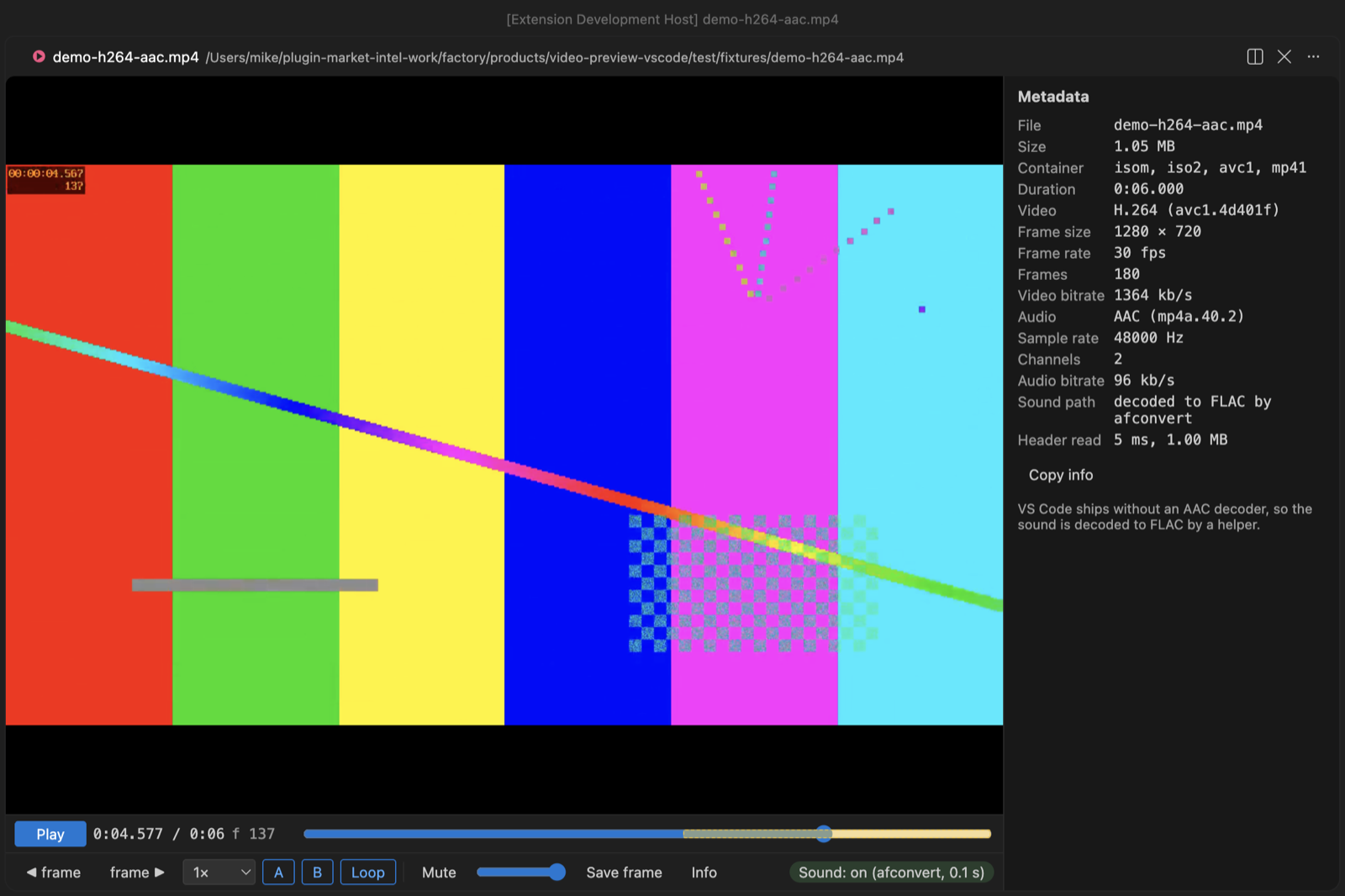
Steps in VS Code
- Install Video Preview with Sound from the Marketplace, or press Ctrl+P (Cmd+P on macOS) and run
ext install zovo.video-preview-with-sound. - Click the video in the Explorer and press Space.
- If VS Code asks which editor to use, pick "Video Preview with Sound".
- The video starts muted while the sound is decoded. The chip changes to "Sound: on" when it is ready.
- For MKV, WebM, AC-3 or DTS sound, install ffmpeg (
winget install ffmpeg,sudo apt install ffmpegorbrew install ffmpeg).
Steps in Cursor, Windsurf or VSCodium
- Open the Extensions view with Ctrl+Shift+X (Cmd+Shift+X on macOS).
- Search for
zovo.video-preview-with-soundand click Install. Cursor, Windsurf and VSCodium install from Open VSX, where it is published aszovo/video-preview-with-sound. - If your editor has no gallery, download the .vsix from the Open VSX page and run "Extensions: Install from VSIX...".
- Then use it the same way as in VS Code.
What Video Preview with Sound handles
- AAC, ALAC, MP3 and PCM sound decoded by a built-in decoder of about 820 KB. A 150-second AAC track took 0.2 s on an M-series Mac.
- Picture-in-picture, frame steps, 0.1x to 4x speed, A-B loop and frame export as PNG.
- Subtitles from .srt and .vtt files next to the video.
What it does not do
- Without ffmpeg, the built-in decoder plays HE-AAC at half the sample rate, and MKV and WebM do not open.
- Sound is decoded before it plays: a one-hour AAC track took 5.7 s with ffmpeg on an M-series Mac.
- HEVC needs hardware decoding, and AV1 depends on your GPU.
Other options
- Re-encode the sound to MP3. VS Code plays MP3 sound, so
ffmpeg -i in.mp4 -c:v copy -c:a libmp3lame -q:a 2 out.mp4gives a copy that plays with sound in the built-in preview. - MPEG-4 Preview (
analytic-signal.preview-mp4, 172,962 installs, not on Open VSX). Its own description: "Preview MPEG-4 (.mp4) video files in VSCode." Not on Open VSX. - Video Preview (Player) - BNPL (
BatchNepal.vscode-video-preview, 22,689 installs, not on Open VSX). Its description says it plays MP4, WebM, MOV, MKV and AVI with full audio support. Not on Open VSX.
Install counts and Open VSX status were checked on 8 November 2026. Descriptions in quotes are the extensions' own.
Questions
Why does VS Code play the video but not the sound?
VS Code is built on Electron, and its Chromium build includes H.264 but not AAC. We tested this on VS Code 1.142: the audio element reports 0 decoded bytes for AAC.
Will MKV files play?
With ffmpeg installed, yes. The extension copies the video into MP4 without re-encoding and decodes the sound to FLAC.
Does the same fix work in Cursor?
Cursor is built on VS Code and installs the extension from Open VSX as zovo/video-preview-with-sound.
More about Video Preview with Sound
Read the Video Preview with Sound page for every feature and setting, or the source code on GitHub.
Related guides
- Open a .docx Word file in VS Code
- Open an Excel .xlsx file in VS Code
- Open an Excel file in Cursor
- See a CSV file as a table in VS Code
Support this work
If this extension saves you time, you can support the work on GitHub Sponsors. Monthly tiers start at $5, and one-time tiers start at $15. Sponsorship is optional, and the tool works the same without it.